Introduction & Overview
Our objective is to provide bring awareness to our internal ETL (Extract, Transform, Load) tool, what it does, what you can do with it, and everything related.
By the end of this guide, you will be able to...
- Understand what role Thrivestack plays in our reporting
- How to authenticate your sources
- How to run Thrivestack jobs
- Common troubleshooting with Thrivestack
image
What is Thrivestack?
Thrivestack is a data pipeline tool that allows you to capture data from multiple sources to transform, store and perform operations on datasets in a highly efficient and scalable way.
Each Thrivestack is a Job ( a job is the outermost container ) that contains one or many tasks.
These tasks can be prioritized in a manner that allows you to construct and deconstruct a working environment for maximum data versatility. In plain english, this means that if something depends on another thing, you can arrange the tasks to go in a specific order to ensure the order of operations works for your case.
Each Task contains operations. An Operation can either be a Source operation or Mutator operation. A Task must contain only utilize one source and one or many mutator operations. Only “completed” or fully constructed tasks that contain one source and at least one mutator are eligible to run.
Fundamentals
Before we dive into what Thrivestack is, we would like to show you how our reporting system works with a diagram.
In Thrivestack, we have something called a "job" that runs every day at a certain time, brings data from various data sources like Google, Facebook, Bing, etc., and stores it in our databases. We use Snowflake for everything storage-related.
Once we have all the data, let's say client X is advertising on Google, Pinterest, and Facebook. Once all 3 jobs (Google, Pinterest, and Facebook) are finished running, we run the GDS/Report job. What a GDS/Report job does is take data from all the platforms, in our case those 3 above, along with data from tabs like custom_field and goal_map from the config sheet, process the data, and sends a copy to BigQuery.
Brief overview of a CONFIG SHEET: https://thrive-digital.atlassian.net/wiki/spaces/COM/pages/1915846665/How+To+Use+Config+Sheet

That same data from BigQuery is fed into Looker Studio reports and Google Sheets (when you use data connector).
:::tip Why does this matter?
Thrivestack plays an integral role of pulling platform data and loading it into our databases which are used for reporting. If any pipeline changes need to be made to update our databases, Thrivestack is the solution.
:::
How do I install and setup ThriveStack?
Go to http://updates.thrivestack.com/. It will automatically detect your current operating system and will start the download of the Thrivestack Client.
Once the download is complete, double click the .exe file and it will guide your through the install process. Once the client is installed, double click the Thrivestack Icon.
If you are given a message stating that the installation was blocked by the operating system, you may need to do the following:
Windows
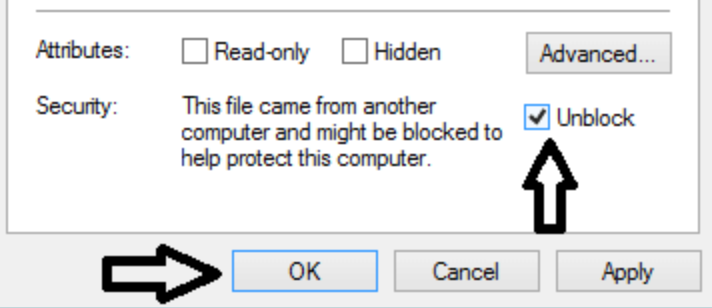
Right-click the .EXE file and click “Properties”. In the Properties window, check the box in the bottom right corner that says “Unblock” and click “OK”.
Mac
You will need ad admin account to unblock the app if it won’t let you start it - please contact either our IT Manager or CTO to give you access.
How do I authenticate and login to the Thrivestack Client?
The Thrivestack Client uses Google to handle authentication. Once you load the application for the first time you will need to log-into to Google with your ThriveDigital.com account. Upon successful completion, you will be navigated to the Thrivestack client home screen.
Keep in mind that because the application lives outside of your web browser, Bitwarden passwords will have to be copied from your vault and pasted into the application. You will only need to authenticate once per device, but if you’re using shared devices, please remember to sign out!