TSK Components
Sources
Sources are collections of data sources that we have available for integration. For example, we have a wide range of primary data sources like Google Ads, Bing, Facebook, Pinterest, LindkedIn, etc as well as less popular ones like Hubspot, Salesforce, Reddit, Snapchat, etc.
We often get requests for CRM integration like Share-a-Sale, Stripe, Criteo, etc., which we often do case-by-case. In many cases, clients prefer to send data to us in.csv files, and we do have such options available, where we take data shared with us via Google Drive, FTP, and Thrivestack, and with a little bit of magic from the data team, that data is transformed into Looker Studio reports.
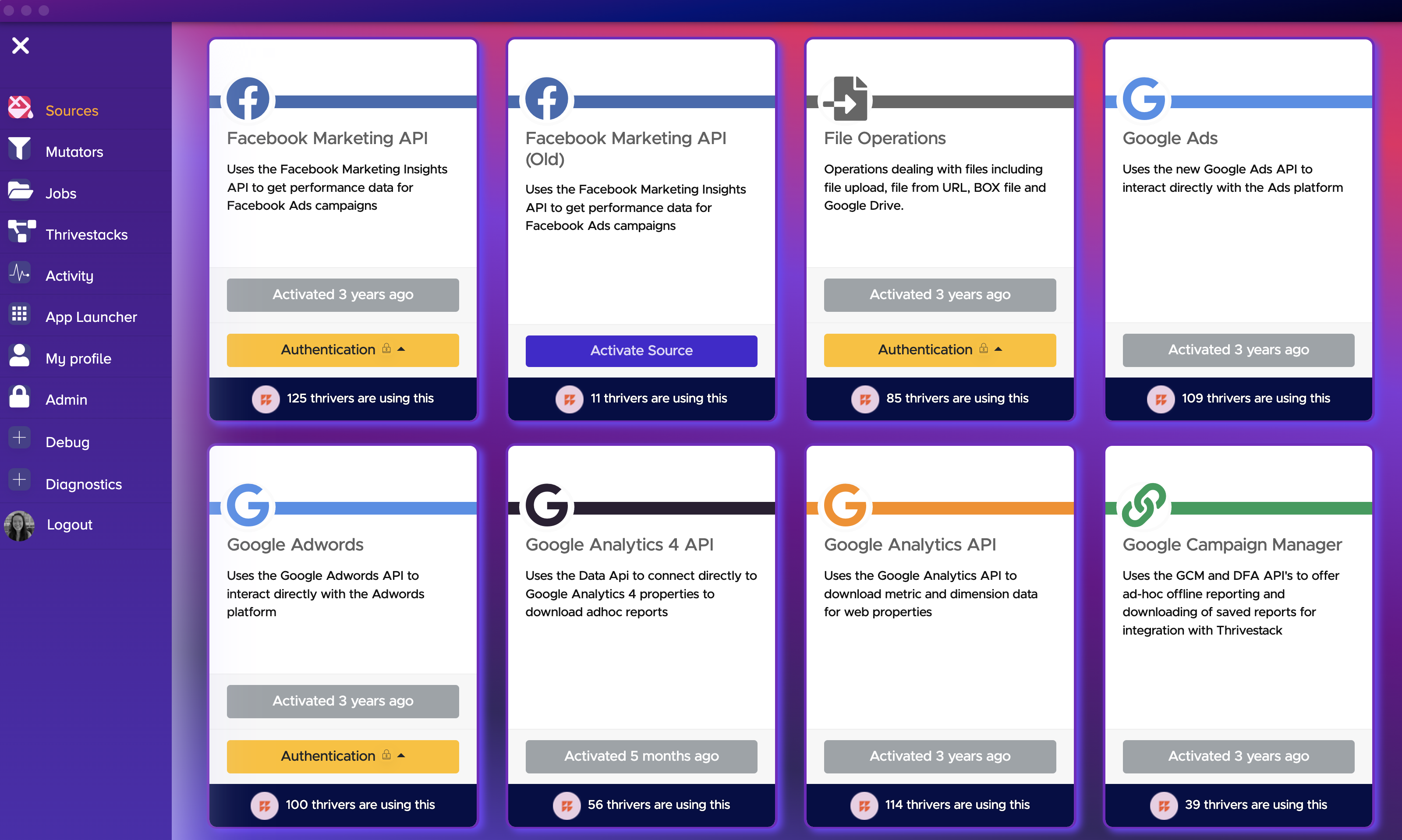
The most important part here is authenticating a token. Let's take an example!
Let's say you have a client X who wants to run ads on LinkedIn. The first thing that you should check is the config sheet. Check if there's any data or job for LinkedIn in the pipeline overview tab.
If you don't see one, then that means that there's no job that brings LinkedIn data into the Looker Studio report! Check out the #help-data-support channel for a pinned item and drop an Asana ticket to the data team.
Once we receive a ticket to setup a new job that pulls LinkedIn data, we will reach out to you and ask you to authenticate a source/token. Whenever the pipeline team wants to create a job, we have to select a source.
Go to the main navigation menu, click on workflow -> Sources.
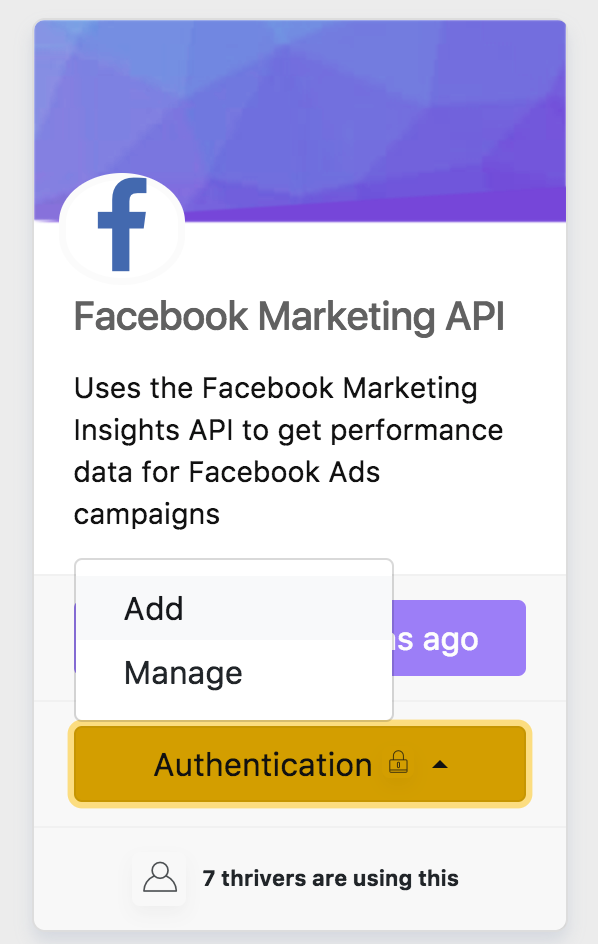
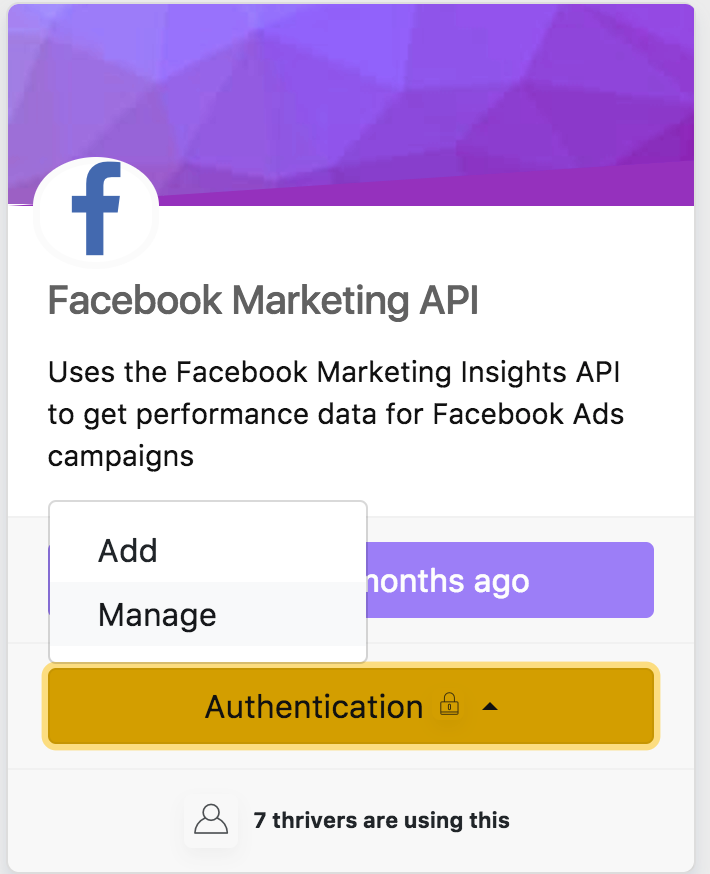
Locate the source you want to add authentication to and click on the Authentication button, There will be two options:
- Add
- Manage
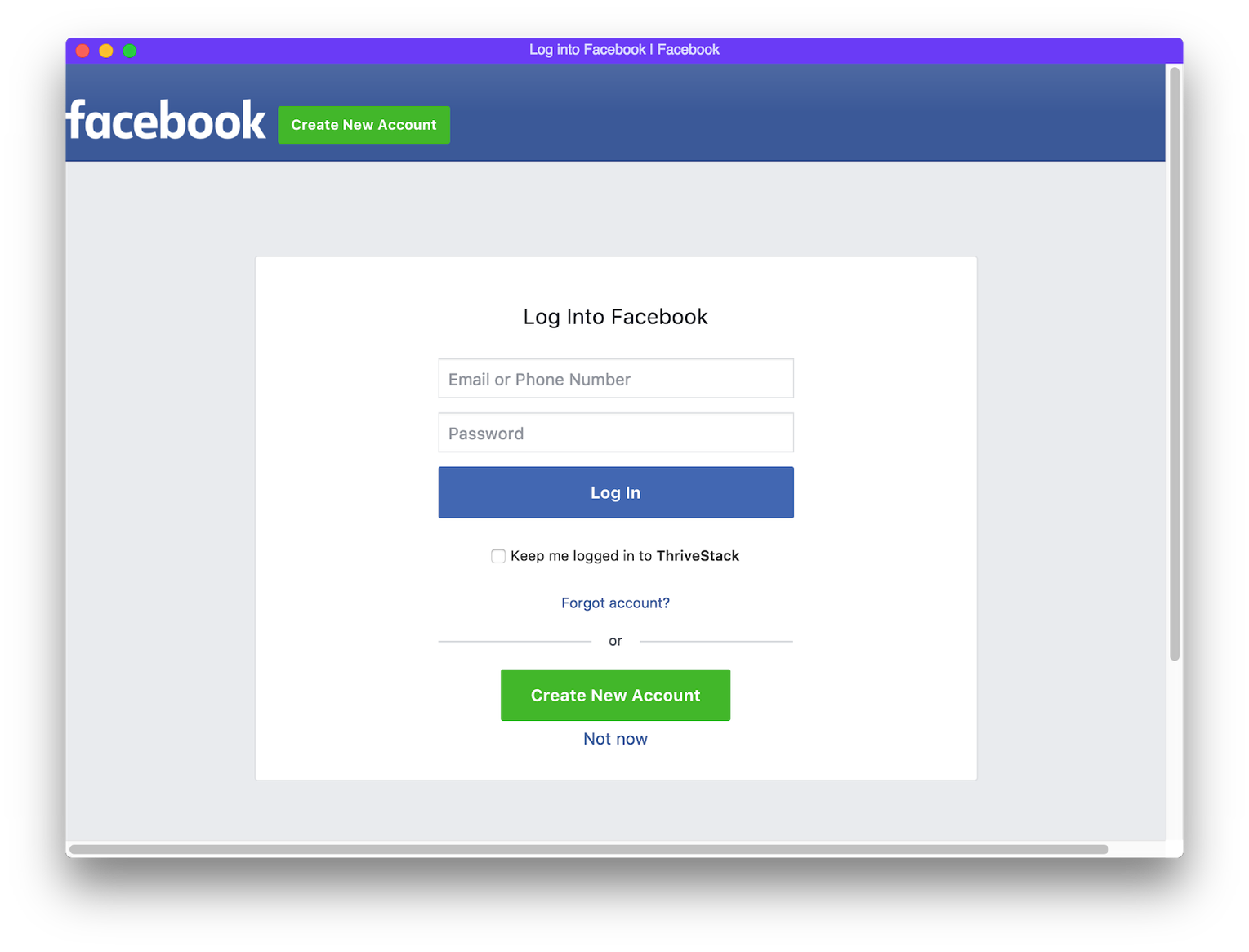
Add will open a new window that will communicate with that service. Follow the instructions in the window. Once a new auth is added, you will be able to manage it in the manage section.
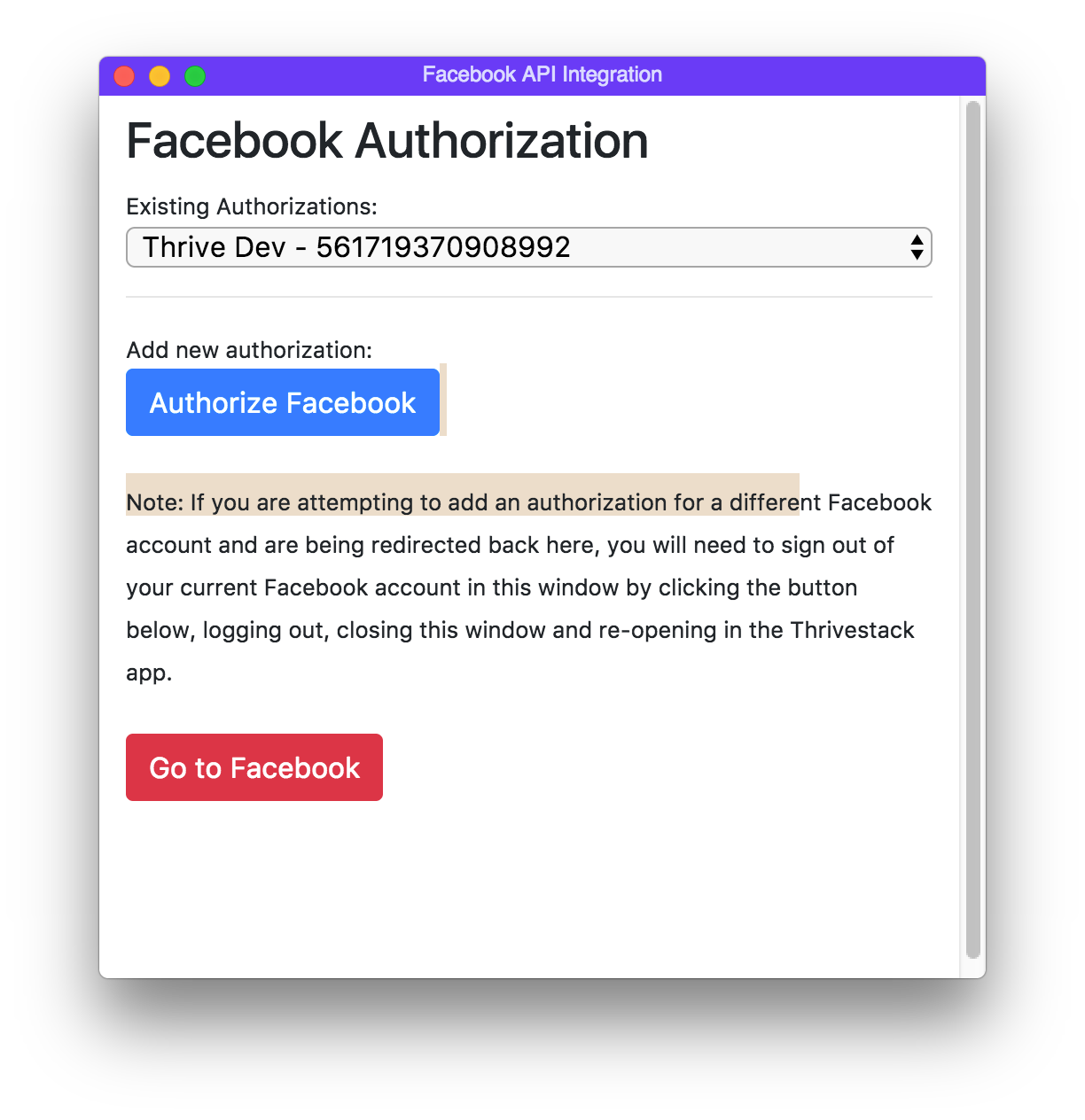
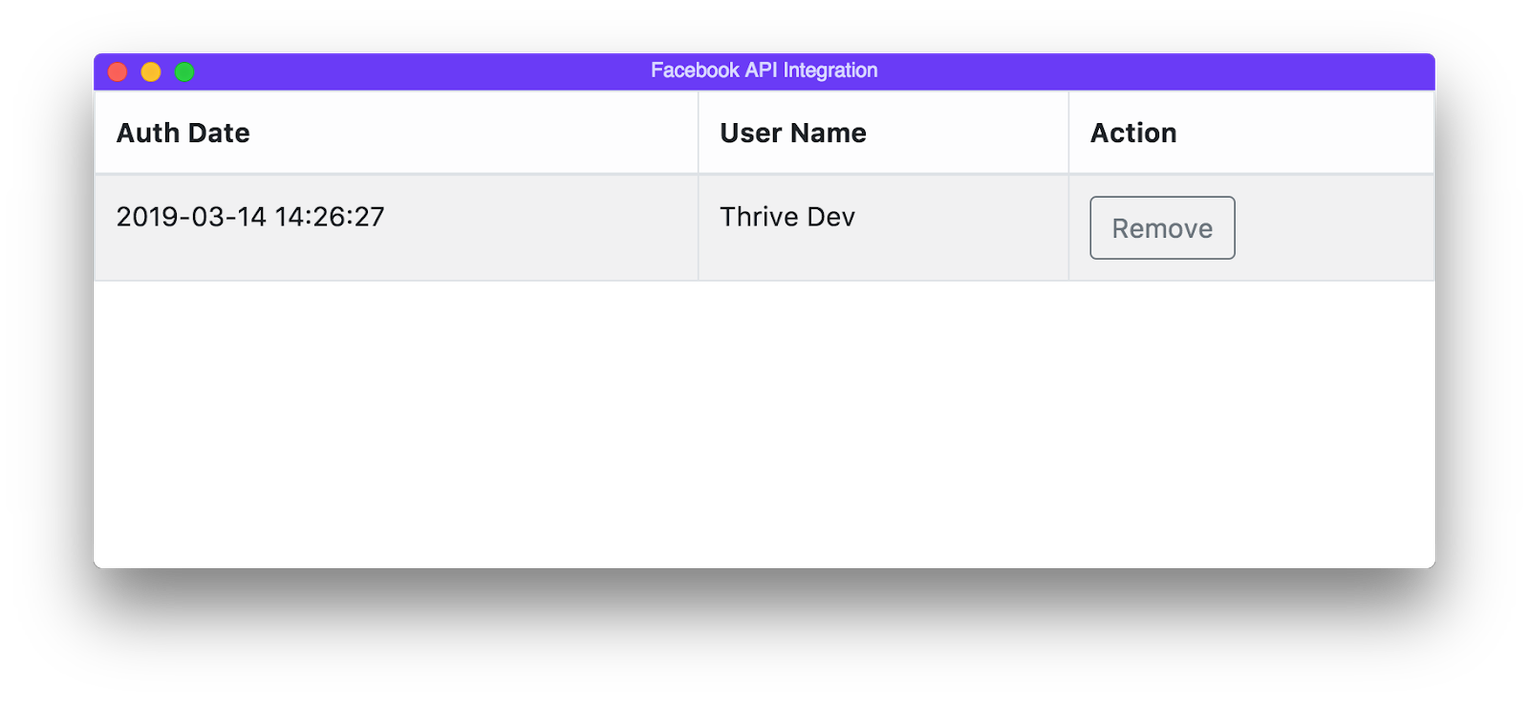
In the Manage section, you can view authentication info (token, date added, etc) and also remove any authentication for that source.
:::tip Why does this matter?
Whenever a new platform needs to be brought into your reports, it is up to the Performance teams to authenticate their Thrivestack sources before the Pipeline team sets up the new Thrivestack job.
:::
Mutators
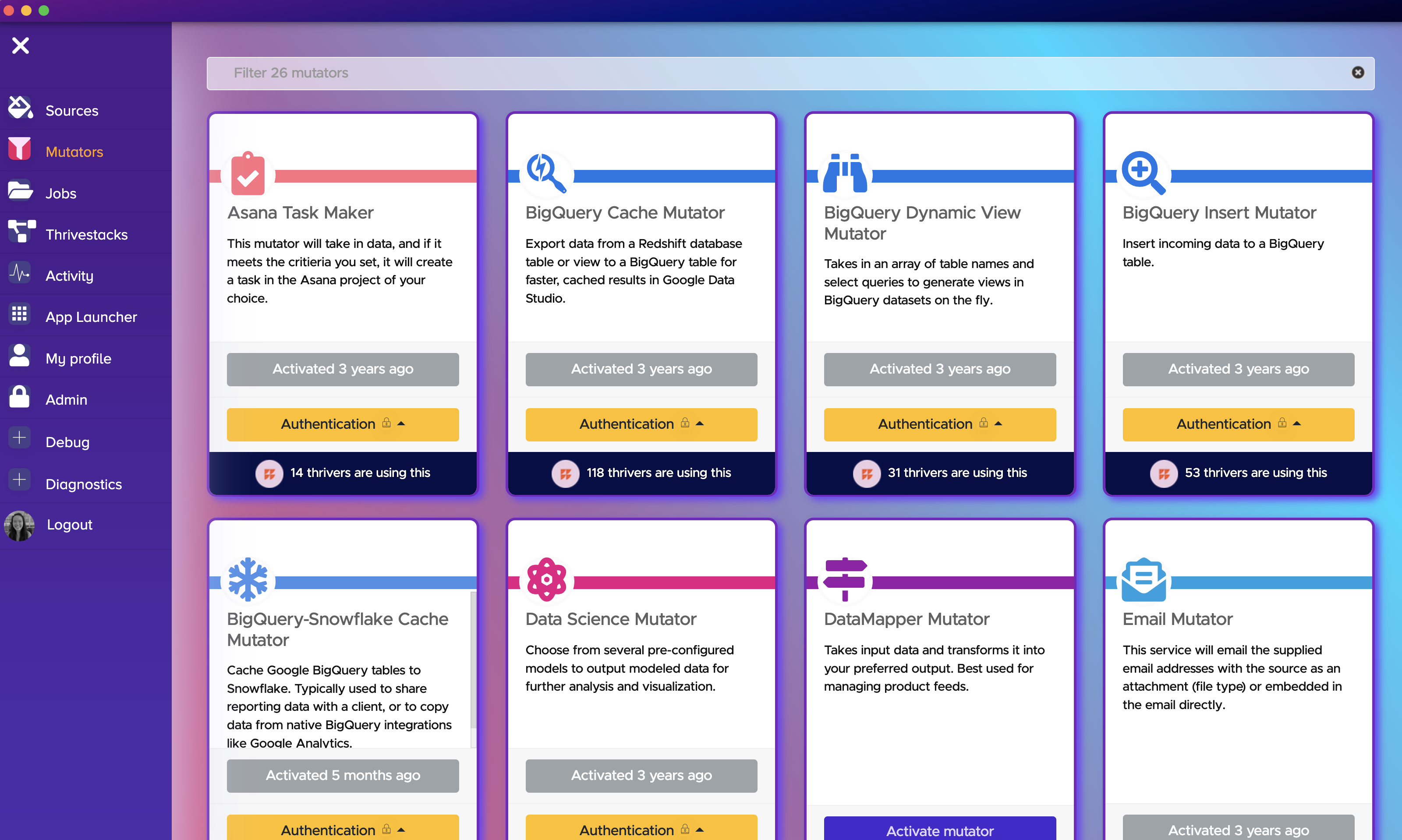
Mutator operations are operations that change, store, pass or otherwise “mutate” the data. These mutator operations can and should be stacked.
For example, it would not be uncommon for someone to create a Task that has multiple mutator operations that creates a database table, stores the data, calculates a value, then stores that new value into a Google sheet.
:::tip Why does this matter?
If you ever want to create your own Thrivestack job in the future, you must understand the different mutators available. Usually the Pipeline team is responsible for creating Thrivestack jobs but we are happy to support if you ever wanted to create your own.
:::
Jobs
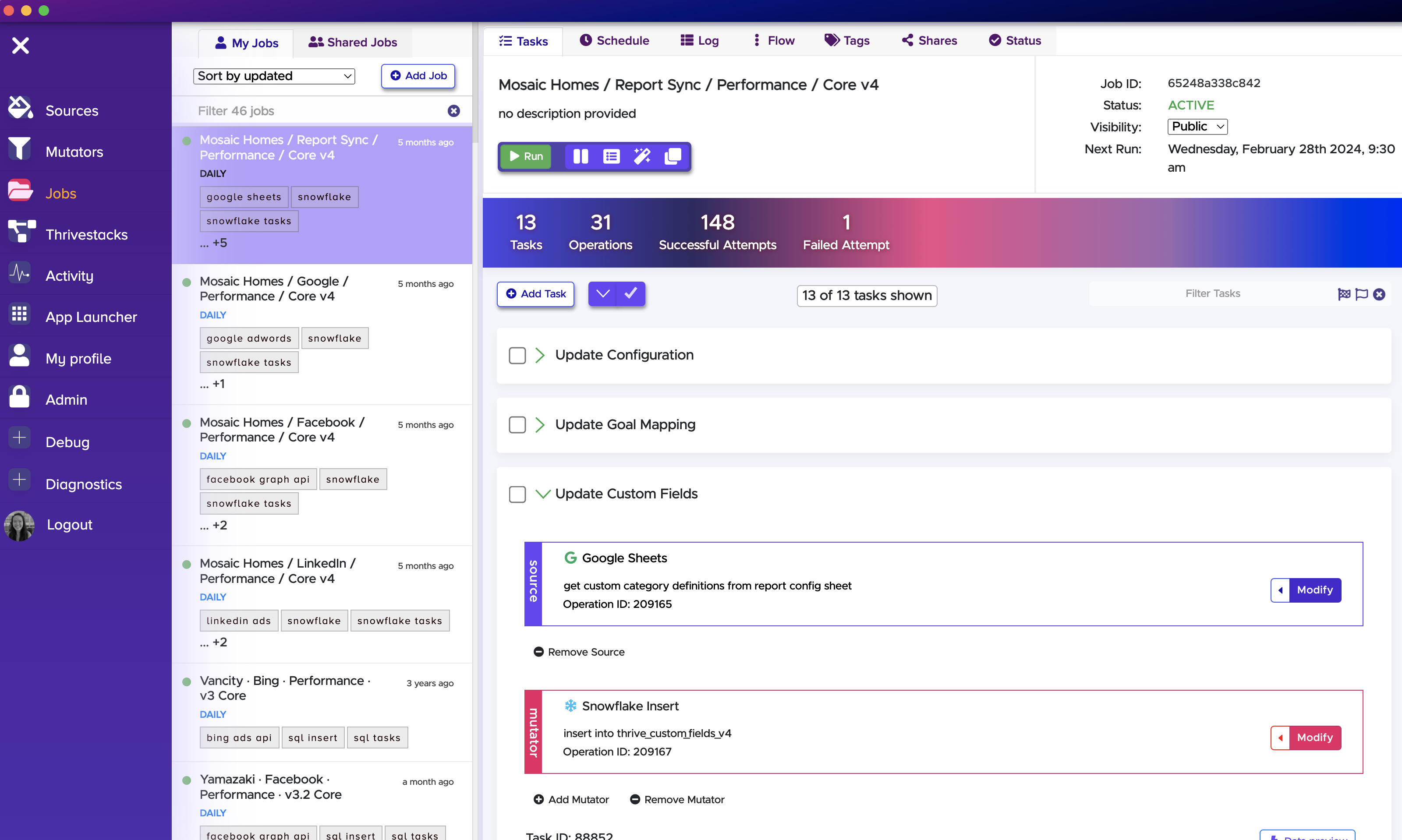
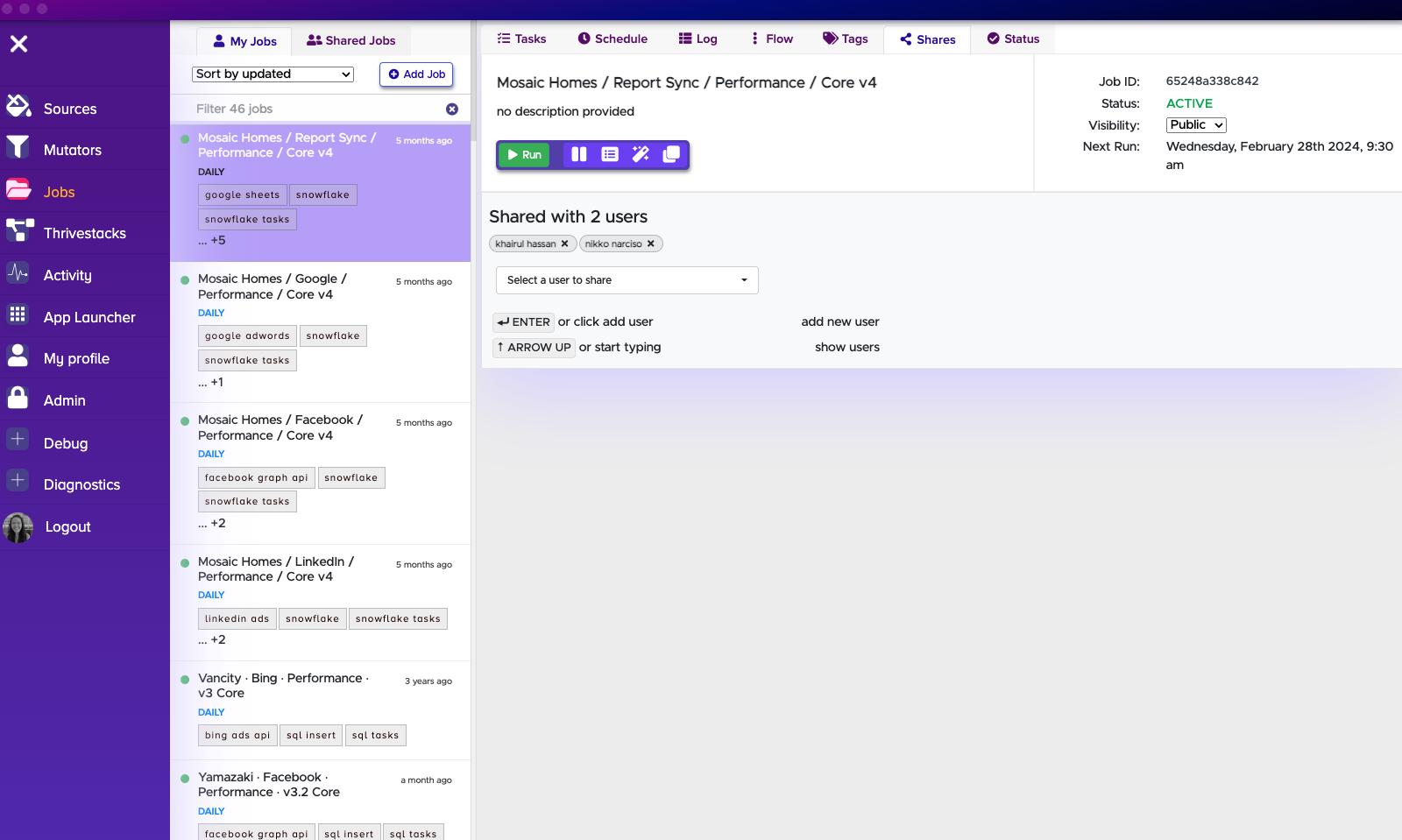
Jobs home and run all operations. Here you will find the schedule the job runs on (e.g. daily at 5 am), what operations are set up, and any other details you're seeking to better understand what data is being pulled into your reporting.
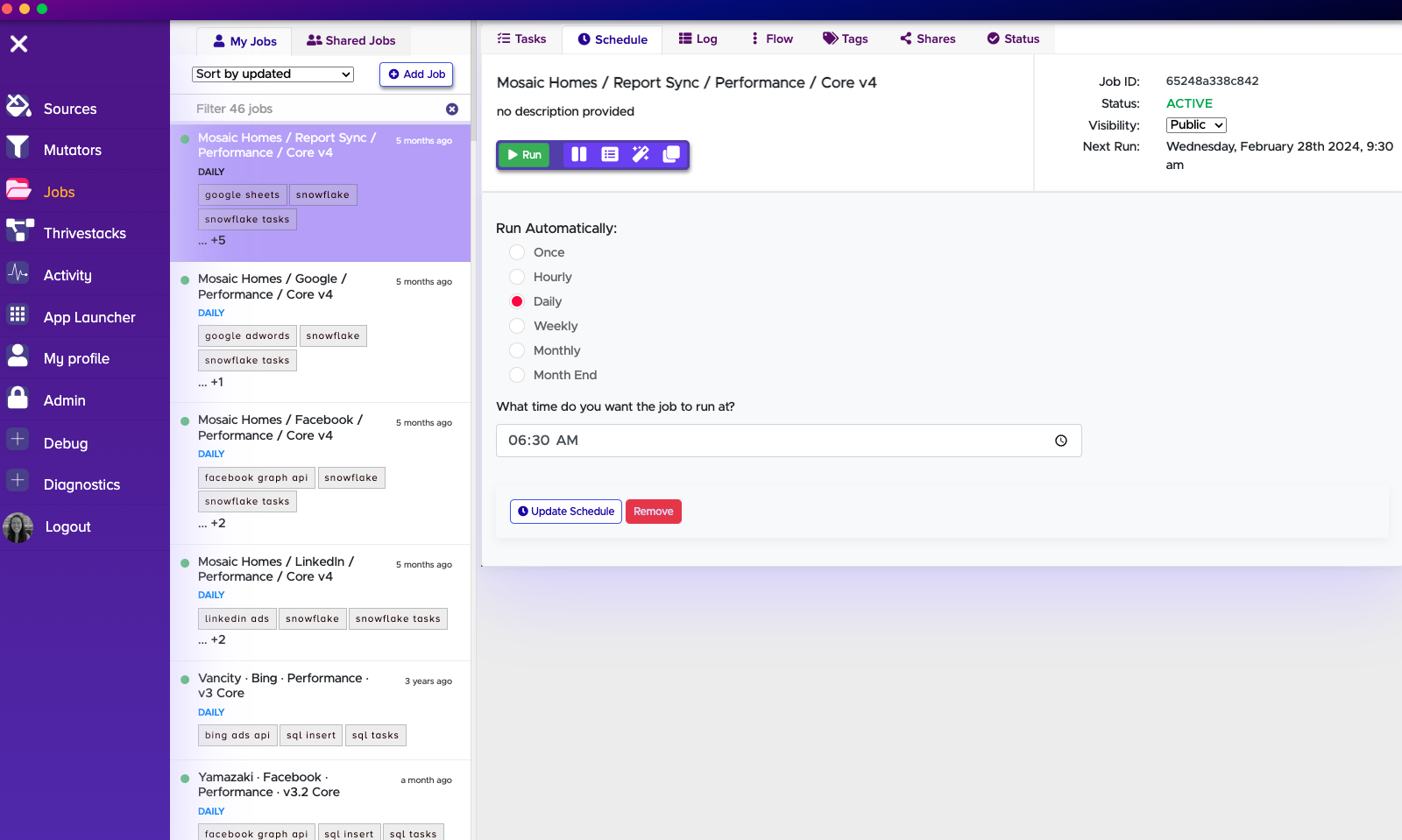
Schedule Details
Here you can find details on when your job is scheduled to run.
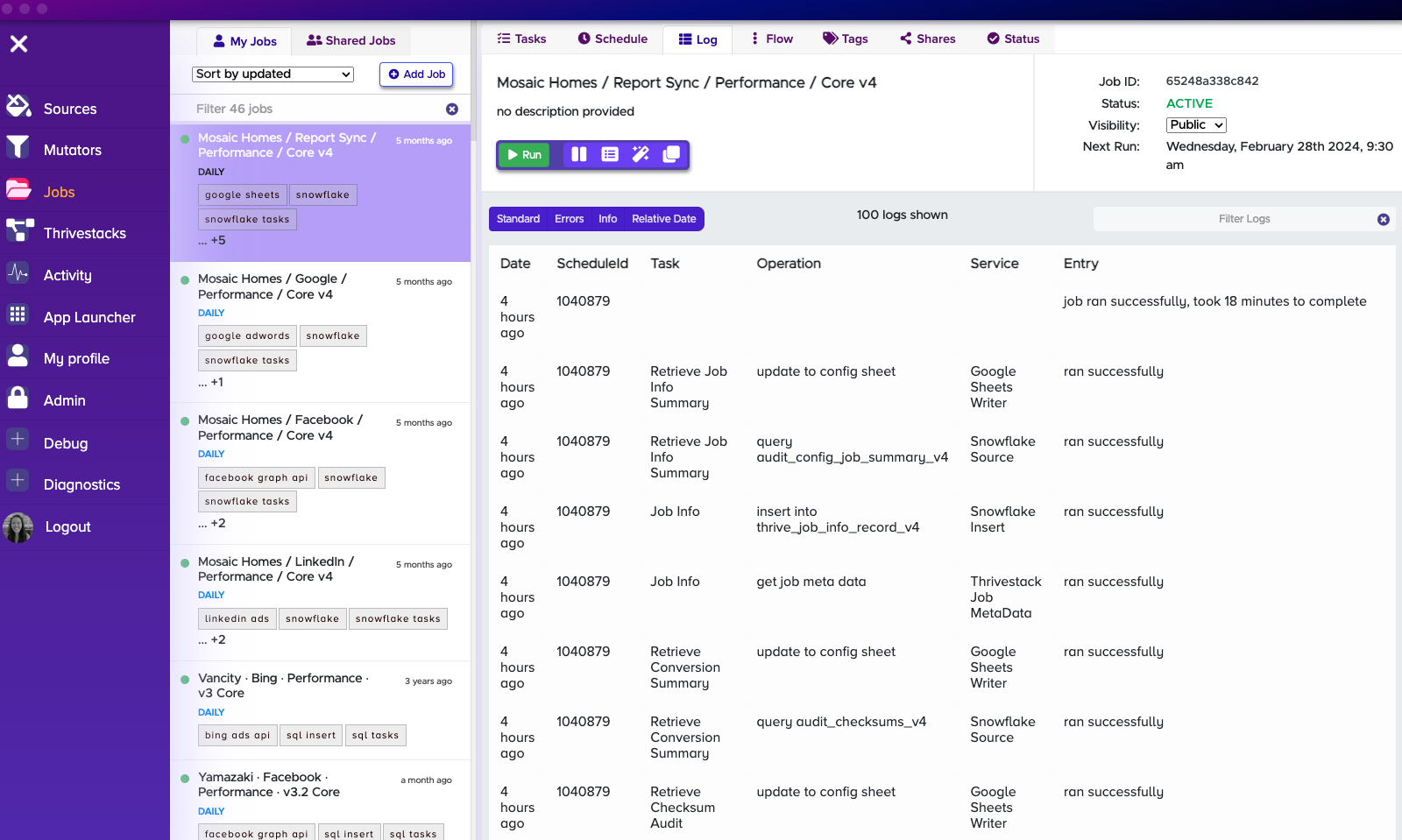
Log Details
Here you can find details on how your job ran. You can see the time it took to run, the time it was last run, and if the job ran successfully.
:::note Note
There are times when a job fails. More details in the next section on how to resolve.
:::
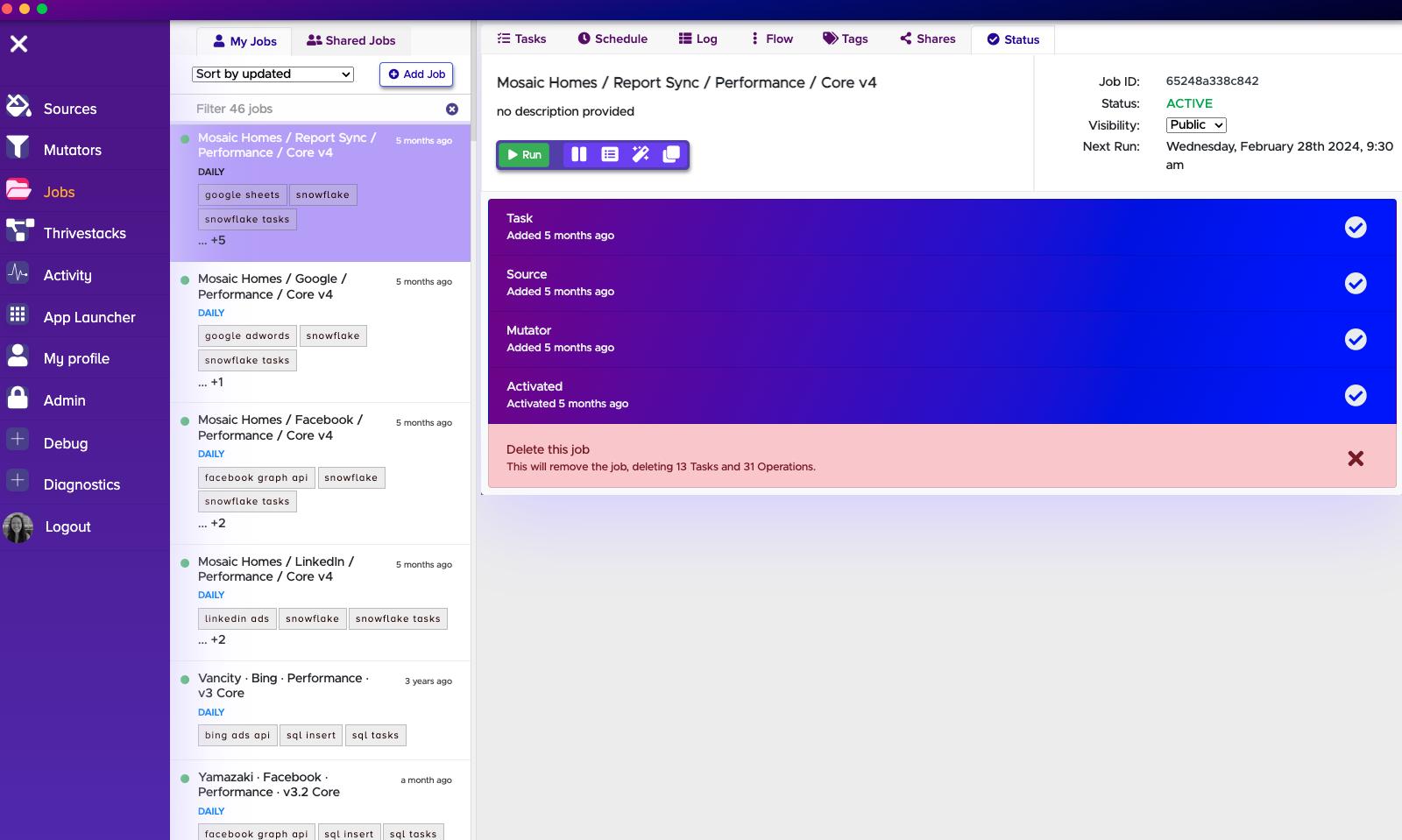
Status Details
If you ever wonder why your job is not running, make sure to check that it is Activated!
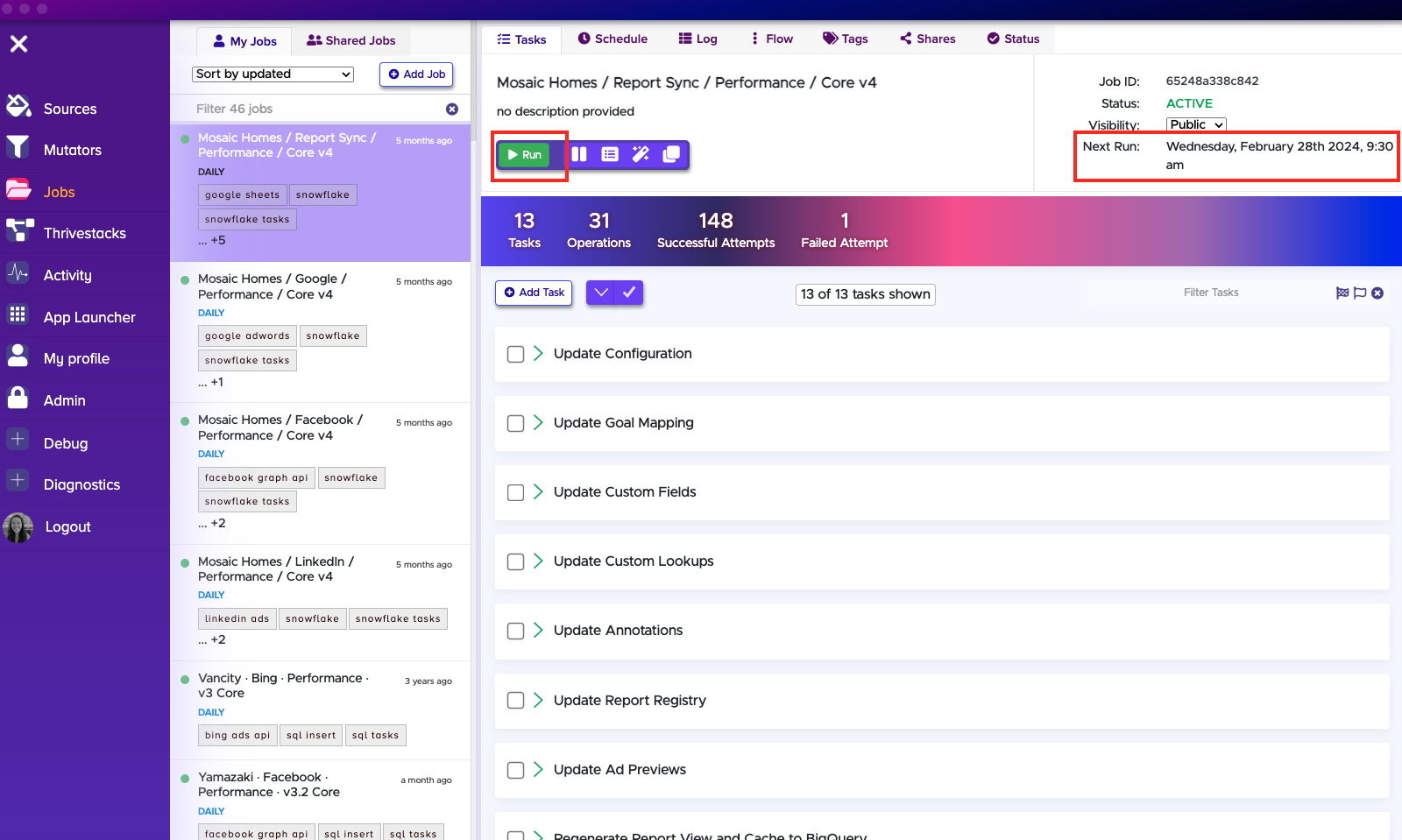
Run
The Pipeline team sets all important Thrivestack jobs on a Schedule. But if there is ever a case where the job didn't run successfully or you made any updates, you will have to re-run your Thrivestack job.
All you need to do is hit "Run". When running a job, make sure your Schedule is working! You will need to check the "Next run" time.
Shares
It is all too common that team members want to re-run Thrivestack jobs but don't have access to run them. This is where the Share feature comes in!
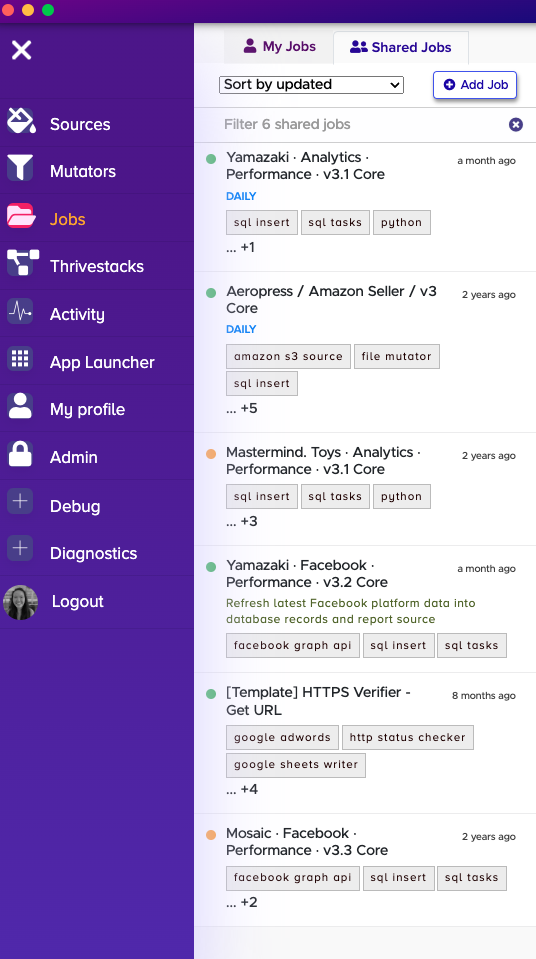
When a Thrivestack job is shared, all shared jobs can be run by any team member who has access to it. All shared jobs can be found in the left panel in the second tab.
:::tip Why does this matter?
As a Performance team member, you will need to know how to re-run Thrivestack jobs and look into why some jobs may not have run. It is also crucial to ensure scheduled jobs stay on a schedule IF any job is re-run (if applicable).
:::